Operation Management Platform

Run your firm with speed, structure, and confidence

CROTMS centralizes client handling, task execution, billing, and reporting so your team can deliver faster with less manual follow-up.

Unified Workflow Clients, tasks, and billing in one flow
Automation Ready Recurring tasks and smart reminders
Secure Access Role-based controls and auditability
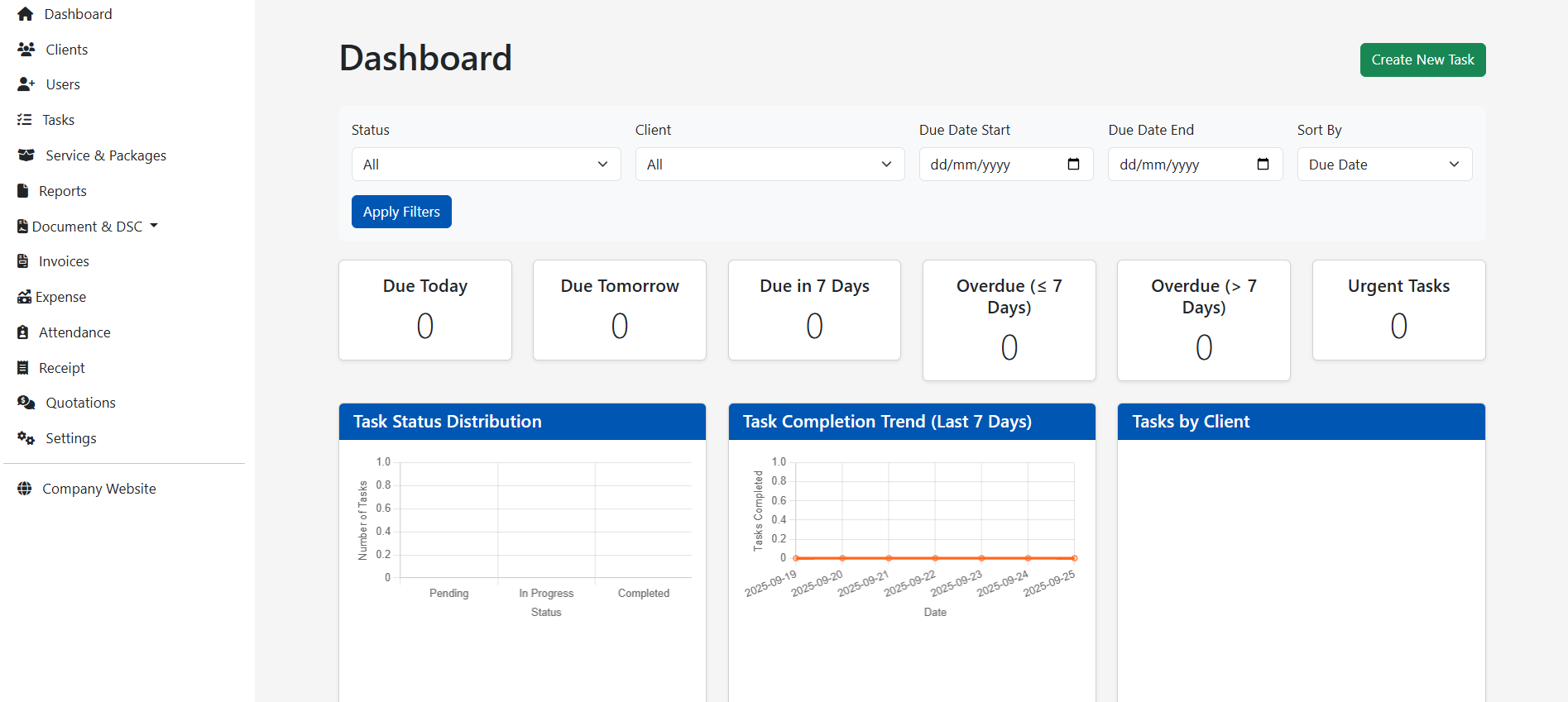
CROTMS dashboard
Live Operational Insights

CROTMS Help Center

Your complete guide to using CROTMS for managing tasks, clients, attendance, billing, documents, and team collaboration. Find answers quickly with actionable, easy-to-follow articles.

Help Center Illustration

Overview

CROTMS (also shown as CAManage on the login screen) is a cloud-based office task and client management platform built for small businesses and professional firms. It centralizes client records, automates recurring workflows, tracks time and attendance, and provides billing and reporting tools in a single web application.

Who this is for: Small accounting, payroll, legal, consulting firms, and small businesses that manage clients and recurring work.

Getting Started

Create an Account
  1. Open the CROTMS site and click Get Started or Register.
  2. Provide your business name, contact email, and mobile number.
  3. Verify your email (if required) and complete the profile setup.
Login
  1. Go to Login.
  2. Enter your username and password.
  3. Optionally check Keep me logged in (3 days).
  4. If you forget your password, use Forgot Password? to request a reset.

Note: Mobile/browser location permissions may be requested if you plan to use attendance features.

User Accounts & Roles

Roles Available

Admin, Manager, Staff, Client (typical setup).

Add a New User
  1. Navigate to Settings → Users.
  2. Click Add User.
  3. Fill in name, email, mobile, role and assign initial permissions.
  4. The new user will receive an invite email to set their password.
Best Practices
  • Keep at least two Admins for redundancy.
  • Use role-based permissions to restrict access to billing or sensitive data.

The Dashboard

The Dashboard provides an at-a-glance overview of active tasks, overdue items, upcoming deadlines, team performance metrics, and quick access to important modules.

Custom Widgets

Add or remove widgets to show the metrics that matter most to your business.

Common Actions from Dashboard
  • Create a new task
  • View team timelogs
  • Jump to client dashboards

Tasks & Subtasks

Create a Task
  1. From the Dashboard or Tasks module, click New Task.
  2. Enter title, description, client (optional), service, due date, and priority.
  3. Assign the task to a user or group.
  4. Add notes or attachments.
  5. Save — notifications will be sent to assignees.
Subtasks

Break large tasks into subtasks. Subtasks can be assigned to different users and roll up progress to the parent task.

Comments & Activity

Use the task comments area to tag team members, add updates, and attach files. Every action is recorded in Task History for audit and transparency.

Auto Task Creation & Recurring Tasks

Auto Task Creation

Define rules or recurring schedules to generate tasks automatically for repeat work (e.g., monthly GSTR-3B or ITR tasks).

Set Up Recurring Tasks
  1. Create a template task and choose Recurring.
  2. Set frequency (daily/weekly/monthly/yearly), start date, and assignment defaults.
  3. Configure reminders and notification rules.
Use Cases

Monthly compliance tasks, periodic client check-ins, invoice reminders, and other recurring activities.

Time Logging & Attendance

Timelog

Track time on tasks either manually or using automatic timers. Exportable reports help with billing and productivity analysis.

Attendance
  • Employees can record clock-in and clock-out from their device.
  • The system may request Location (GPS) access to validate attendance location — enable GPS on the device and allow the browser or app to use location services.
Troubleshooting Attendance
  • If attendance fails to register, check browser/device location permissions and internet connectivity.
  • Ensure the user’s time zone and device clock are correct.

Clients & Client Portal

Add a Client
  1. Go to Clients → Add Client.
  2. Fill in company/client name, PAN/GST (optional), and contact details.
  3. Assign services and create an onboarding task if needed.
Bulk Import Clients

Upload an Excel/CSV file to import many clients at once. The system validates data and attempts to prevent duplicates.

Client Portal & Document Upload
  • Clients can access a secure portal to upload documents (OTP-based login may be available for streamlined access).
  • Uploaded documents can be attached to specific client records or tasks.
Client Groups

Use groups to organize clients by service type, region, or priority, and to send bulk notifications or assign services.

Invoicing & Billing Entities

Create an Invoice
  1. Navigate to Billing → Invoices → New Invoice.
  2. Select Billing Entity (multi-billing entities supported), client, invoice date, and invoice items.
  3. Add taxes, discounts and save or send the invoice by email.
Multi Billing Entities

Create multiple billing entities (useful for firms with separate tax registrations or brands). Configure the default billing entity in company settings.

Pricing & Billing

CROTMS uses a per-user subscription model with tiered pricing (discounts for larger user counts). Billing is flexible with monthly, quarterly, half-yearly, and annual options.

Documents & DSC Management

Document Management

Upload, organize, and share completed task files with clients. Documents are stored per-client and per-task for easy retrieval.

DSC Management

Manage your client DSC inventory — register DSCs, assign to users, and track usage for e-filings that require digital signatures.

Integrations (WhatsApp, SMS, Email)

WhatsApp AI Assistant & API Integration

Use WhatsApp for automated client communication or connect via API to send messages directly from your account.

Automated SMS & Email

Configure SMS and email templates for reminders, OTPs, and notifications. Note: initial free SMS credits may be provided as part of onboarding.

Reports & Exports

Available Reports
  • Task progress
  • Timelogs
  • Invoices
  • Client activity
  • Attendance summary
  • Compliance calendars
Export Formats

CSV/Excel for spreadsheets and offline analysis.

Security & Privacy

  • Role-based access and encryption protect sensitive business data.
  • Two-factor authentication (2FA) is supported for secure logins.
  • Data export options are available if you decide to migrate off the platform.

Pricing & Billing FAQ

  • CROTMS follows a per-user billing model; there may be minimum user counts for annual plans.
  • Subscription billing can be monthly, quarterly, half-yearly, or annually.
  • Cancellation policies and refund windows are described in your invoice and account settings.

Troubleshooting — Common Issues

Unable to Login
  • Check email and password.
  • Use Password Reset to request a reset link.
  • If 2FA is enabled, ensure your authenticator app or SMS is reachable.
Attendance Not Recording
  • Check device GPS, browser permissions, and network connectivity.
  • Clear browser cache or try another browser/device.
Email/SMS Not Delivered
  • Check your configured SMS/email gateway settings.
  • Confirm sufficient SMS credits in account or contact support.
Import Errors During Bulk Upload
  • Download the sample template and match column order and formatting.
  • Fix validation errors flagged by the import tool and retry.

Contact & Support

Office Location

Hazaribagh, Jharkhand, India-825402

Email

support@crotms.com

Phone

+91 97097 98988